Almost every organization has a Data Lake today in some form or the other. Every cloud provider has simplified the process of building Data Lakes. On AWS, you can start having one with just these simple steps:
- Create a S3 bucket
- Ingest data into the S3 bucket (through Kinesis Firehose, APIs, etc…)
- Use a Glue crawler to crawl that data and populate metadata in the Glue Catalog
- Use Athena to start analysing the data through SQL
With the above steps, you have data flowing into your Data Lake and you address few use cases. Once the above setup is in place, quickly the Data Lake would start collecting a lot of data. On the other hand, different folks in your organization would start accessing this data. And sooner than later, if you are the owner of this Data Lake, you start worrying about one big challenge.
Data Access Control in Data Lakes
As different users in your organization access the Data Lake, how do you implement “Access Control” mechanisms in your Data Lake? So that people with the right permissions & clearances can only view certain sensitive/confidential data.
Let’s say your Data Lake holds customer information. You need to hold PII information such as email address and phone numbers for your marketing automation. At the same time, you do NOT want your Data Analysts to have access to this information (let’s say their typical use cases do not require access to email address and phone numbers).
This has been addressed in Databases for many decades now. You implement “Access Control”. In Databases, you define fine grained permissions (typically through GRANT) on who can access what data.
So, how do you implement something similar to a Data Lake? And more importantly where do you implement this access control?
Access Control Permissions at the Data Catalog
One of the key attributes of a Data Lake is the ability to use different tools to process & analyze the same data. Your Data Lake users could be using a SQL based tool today for some adhoc analysis and would later switch to running a Spark cluster for some compute intensive workload.
So, you could implement Access Control at the individual tool level. For example, if you are using Amazon Athena and AWS EMR, you could implement permissions in these services to control who has access to the data being analyzed through these services.
However, a better and scalable alternative is to implement the Access Control permissions at the Data Catalog level. This provides us the following advantages:
- All the services that your Data Lake users use to process data leverage the same underlying catalog. And permissions are maintained there
- The permissions are implemented centrally and can be managed at one place instead of duplicating at many services. Whenever users no longer need access to your Data Lake, you can delete their access at one place
- You get a single view of who can access what. Simplifies audits
Implementing Centralized Column Level Permissions in AWS Data Lakes
Let’s look at how to implement a centralized column level permissions in AWS Data Lakes with an example.
Sample Data
I have got the New York City Taxi trip record data set in my S3 bucket. It’s organized month wise as below. This is a public dataset available here: https://registry.opendata.aws/nyc-tlc-trip-records-pds/.

Create a Database using AWS Lake Formation
Head over to AWS Lake Formation and create a Database that will hold the metadata. For instructions on how to create a database, check this documentation: https://docs.aws.amazon.com/lake-formation/latest/dg/creating-database.html
Create a AWS Glue crawler to populate metadata
The next step is to create a Glue crawler, crawl the sample data and populate the metadata in the Lake Formation database that we created earlier. Check this documentation https://docs.aws.amazon.com/glue/latest/dg/console-crawlers.html for instructions or follow the step by step instructions in the Glue Console.
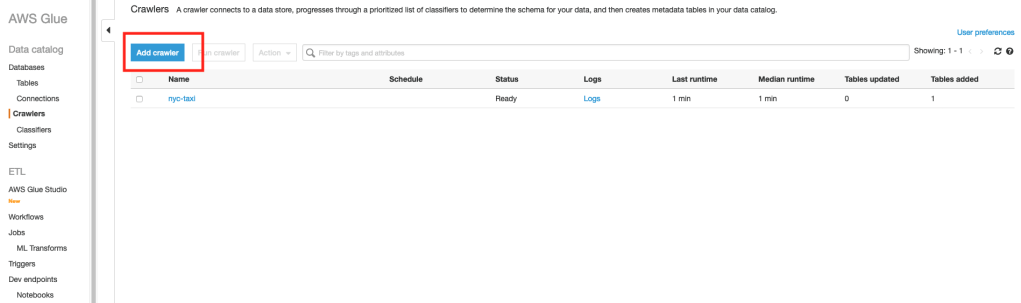
When you create the crawler, provide the Lake Formation database that you created earlier as part of the Crawler’s output configuration.
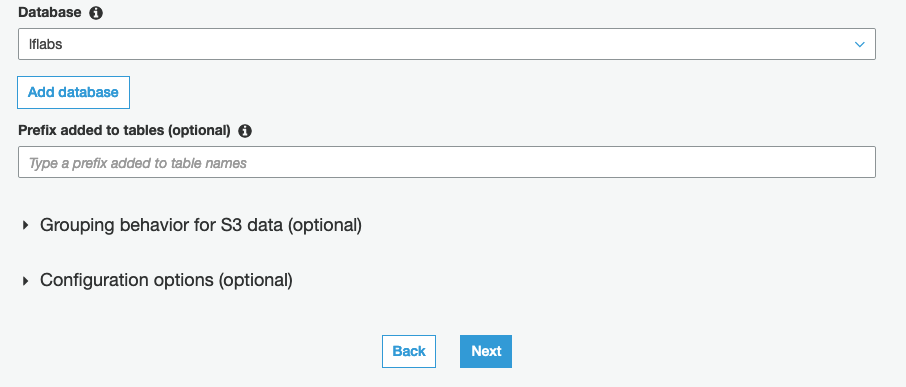
Once the crawler completes, go back to Lake Formation console and you should see a table created under “Tables”. Here’s a screenshot of my Lake Formation table. Your’s should look something similar.

Here’s the table schema as discovered by the Glue crawler.

Restricting access to few columns
Let’s say, out of the above columns, we do NOT want regular users of our Data Lake to view the “fare_amount” and “total_amount” columns.
For this purpose, I have created an IAM user called “dl-demo-user” for whom I would like to restrict the above two columns.
- In AWS Lake Formation, select the table that was populated by the Glue crawler
- Click on the Actions menu at the top and select the Grant option

In the next screen, provide the following inputs:
- Select the IAM user(s) that you would like to restrict access. I chose the “dl-demo-user” that I created specifically for this demo
- In the “Columns” drop down, choose “Exclude columns“
- Select the “fare_amount” & “total_amount” in the “Exclude columns” drop down
- For Table permissions, choose “Select“

That’s it.
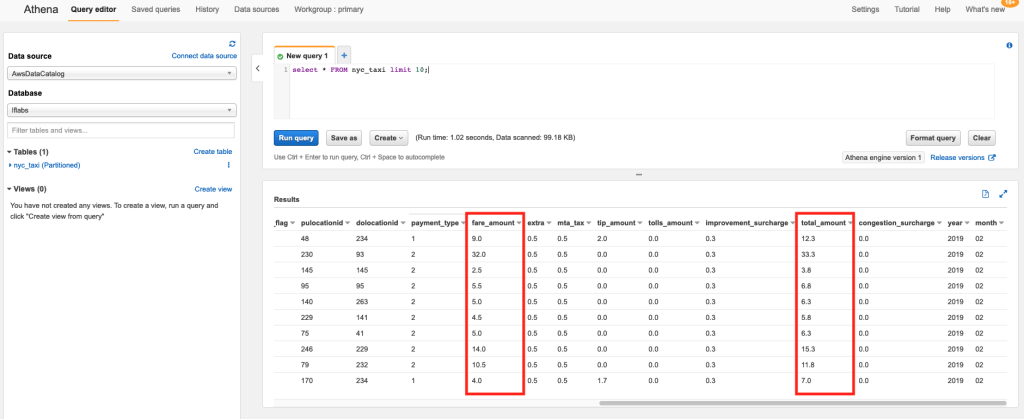
Now, I log in as the “dl-demo-user” and head over to Athena to execute the following query:
select * from nyc_taxi LIMIT 10;The Athena query results no longer show the “fare_amount” and “total_amount” columns.

If the same user were to use AWS EMR or Quicksight to access the same data, the user will NOT have access to the above two columns.
However, when I run the same query using a different user, the query results include the “fare_amount” and “total_amount” columns.
Viewing Data Permissions
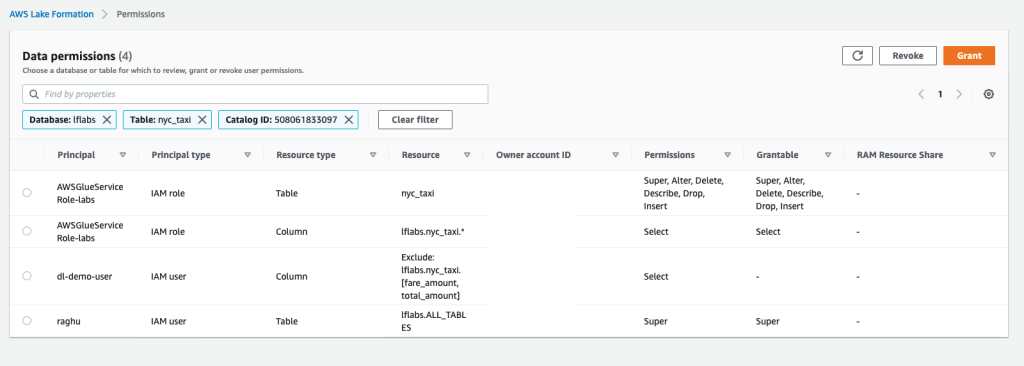
You can also use Lake Formation to get a single consolidated view of permissions across all users of your Data Lake.
Click on “Data Permissions” from the left menu of the Lake Formation console to view all permissions. You can also use the “Grant” and “Revoke” buttons at the top to manage permissions from this page.
Conclusion
Implementing column level permissions is an important requirement for many organizations. Especially if your data lake consists of sensitive data (such as customer, sales, revenue), you would definitely have requirements to restrict access to certain fields only to few folks who have the necessary clearances.
Such permissions when implemented at the Data Catalog level provides the following advantages:
- Users of your Data Lake can continue to leverage different services like Athena, EMR, Glue, Quicksight to analyze the data
- From a Data Governance point of view, you can manage permissions centrally at the Data Catalog level using Lake Formation
- Permissions from Lake Formation automatically federate across all services without the need to duplicate it at each service
- Whenever you need to add/delete users of your data lake, you get to manage it at one place
Hope this article provided some ideas on how to implement column level permissions for your Data Lakes on AWS. What are some other tools/techniques that you use to implement the same? Do share them in the comments below.
 CloudStaq
Leave a comment